White Text Missing from a Tire Label Proof? Review the Output File
Published
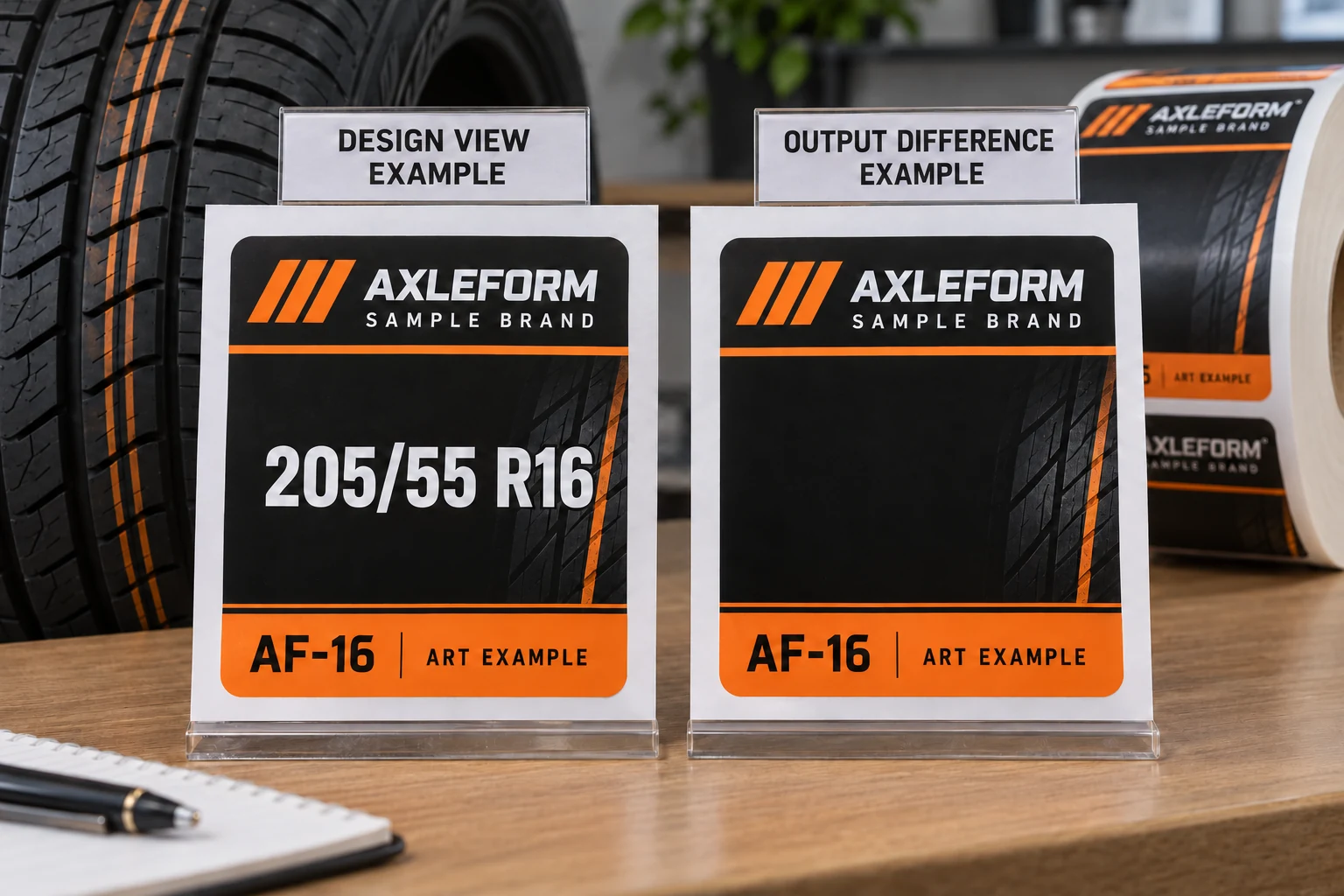
The tire-size text is visible in the designer's view. On the supplier's returned output proof, the same dark panel has no readable white size. The buyer can point to the difference, but a screenshot alone does not show why it happened.
Before changing the material or approving the more reassuring picture, preserve the exact files and ask for an output-aware review. White-object overprint is one possible issue to investigate; it is not a diagnosis that can be made from every missing-text photograph.
This is an illustrative tire-label approval problem. The purchasing decision is whether a specific output artifact is ready for release, with required content present and its intended white treatment understood. It is separate from choosing the color, tire-label size or adhesive.
Keep the discrepancy attached to the files
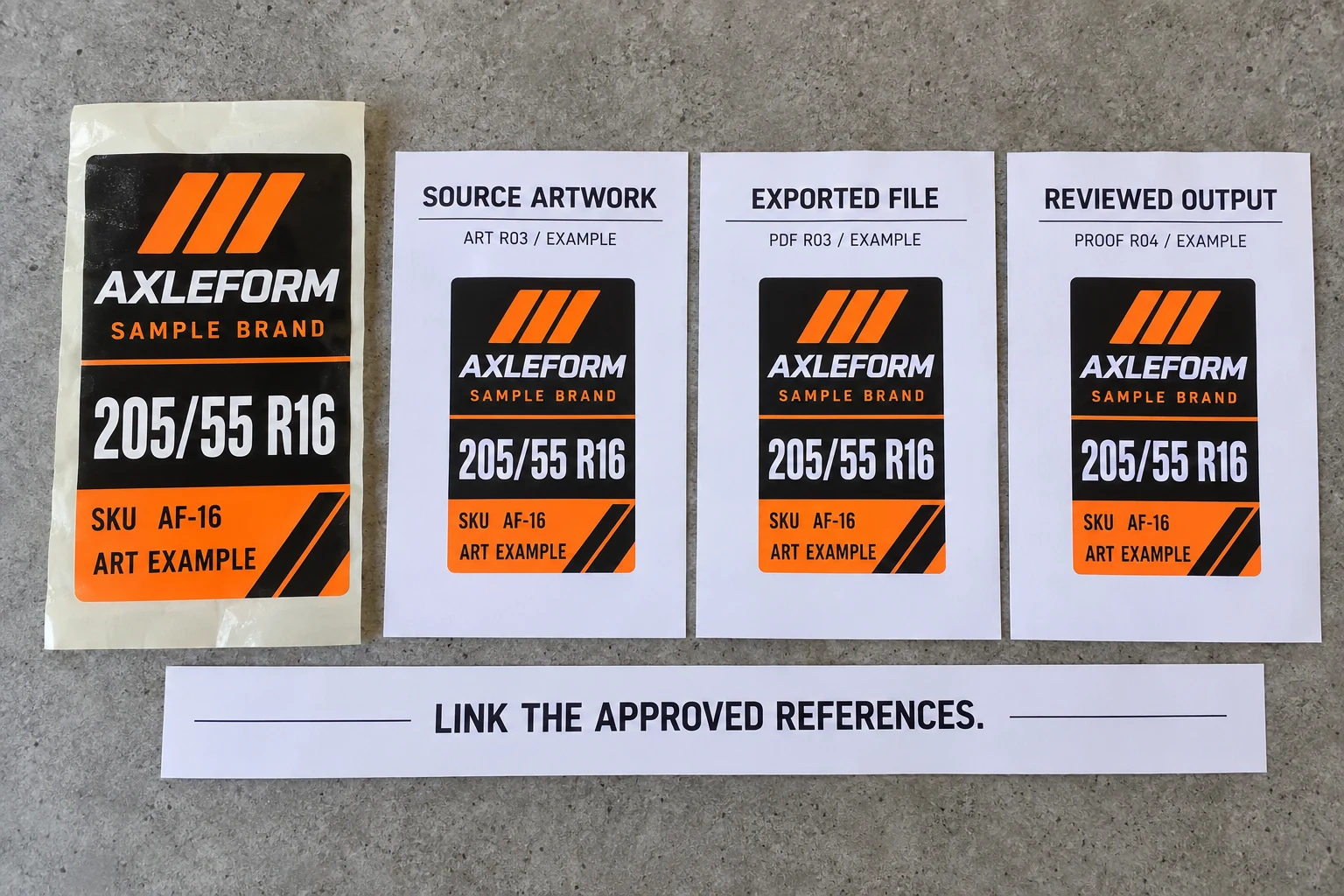
Identify the source artwork revision, exported file and returned proof that disagree. Mark the affected field and the page or label version on which it appears. If several tire SKUs share a template, state which versions were actually reviewed rather than assuming that one corrected example proves every layout.
Retain the original files before anyone overwrites them. A screenshot is useful for pointing out the symptom, but it should accompany the source and output references. It does not replace the production file or explain the export and viewing conditions.
The existing tire-label artwork guide collects the general content and data inputs. This review adds a narrower handoff: the buyer needs a traceable explanation for why a required object differs between the submitted design and the output being approved.
Distinguish white artwork from a white-ink construction
In a printing workflow, the word white can describe different things. A white-looking object in the design is not automatically a separately specified white ink. The designer and prepress reviewer need to identify what the object represents in the intended construction.
Adobe's White Overprint documentation, updated April 8, 2026, describes unintended overprint attributes on white objects becoming apparent in overprint preview or separations. It also describes output controls for suppressing that treatment and specifically distinguishes Spot White objects from the affected operation.
That is a software example with a defined scope. It does not prove the cause in the buyer's file, identify the supplier's software or justify disabling every overprint setting. An intended spot-white layer requires its own agreed treatment; a broad correction intended for ordinary white objects may not describe that job at all.
Ask the responsible designer or prepress reviewer to state which case applies. The buyer needs the approved visual result and a clear construction description, not an improvised global setting that may alter other objects.
Review the output treatment before redesigning the label
Have the file owner examine the affected objects and the actual export/output path using the tools appropriate to that workflow. Ask what changed between the versions and what evidence supports the proposed correction. Do not label the issue a press fault merely because it first appeared in the supplier's proof.
The missing field could also require another investigation. File provenance and the observed difference should lead the review. The article does not provide a universal troubleshooting tree or claim that one menu option cures every missing white object.
Overprint also has a different meaning from a buyer adding variable data to preprinted stock. The variable-print-window guide addresses that physical two-stage workflow. Here the issue concerns attributes and output treatment within a supplied artwork file, even if the entire finished label will be printed in one production stage.
Ask for a corrected artifact, not just reassurance
Once a correction is proposed, request the revised output reference and review the affected information at the intended finished size. Confirm that the required tire size, SKU or other field is present in the output the supplier is asking the buyer to approve.
Also check the agreed scope of the change. A correction to one object should not silently move the code area, alter a different tire designation or replace approved text. If several shared-template files need regeneration, record which ones were returned and which still await review.
| Review field | Evidence to retain |
|---|---|
| Source and output | Exact artwork, export and proof revisions that showed the discrepancy |
| Affected content | Field, object area and label/SKU versions actually involved |
| Intended white treatment | Designer/prepress description of ordinary white or specified spot-white construction |
| Correction | What changed, who reviewed it and the revised output reference |
| Release | Approved result, covered versions, limitations and responsible buyer signoff |
These are project record fields. They do not certify software conformance, prove a printed construction or substitute for a separately required physical sample. If print appearance is important, agree what physical evidence the project needs as well.
Keep unrelated choices out of the correction
A file-output issue may be resolved without a new die cut or a different adhesive. Do not turn an unresolved visual discrepancy into a wholesale label redesign before the responsible reviewer has checked the supplied artifacts.
Conversely, a proposed artwork simplification can be useful when the layout contains unnecessary complexity and the buyer approves the change. That option must still preserve required product information. Flattening a file, redrawing text or replacing linked objects should not be treated as permission to discard data or bypass output review.
Keep the broader physical and application approval separate. Resolving this output discrepancy closes one approval question; it does not prove adhesion to the tire or approval of every service condition.
Attach the approved output to the print release
When the responsible buyer approves the corrected result, retain that reference with the released artwork and the affected SKU list. Make it clear which earlier proof is superseded. A discussion can end correctly while an old attachment remains available to the person preparing the print job.
For custom tire labels, I would ask for the exact approved output reference in the release note. It is a small field with a precise job: it tells production which resolved version the buyer actually accepted.
Reviewing a tire-label output discrepancy? Prepare a file-review brief with the original artwork, exported file, returned proof, marked affected field, intended white treatment if known, tire SKUs, finished dimensions and quantity. Use the contact page to organize the requirements, then send the supporting files through the existing email or WhatsApp path for a project-specific discussion.