Preprinted Tire Labels: Approve the Variable-Print Window
Published
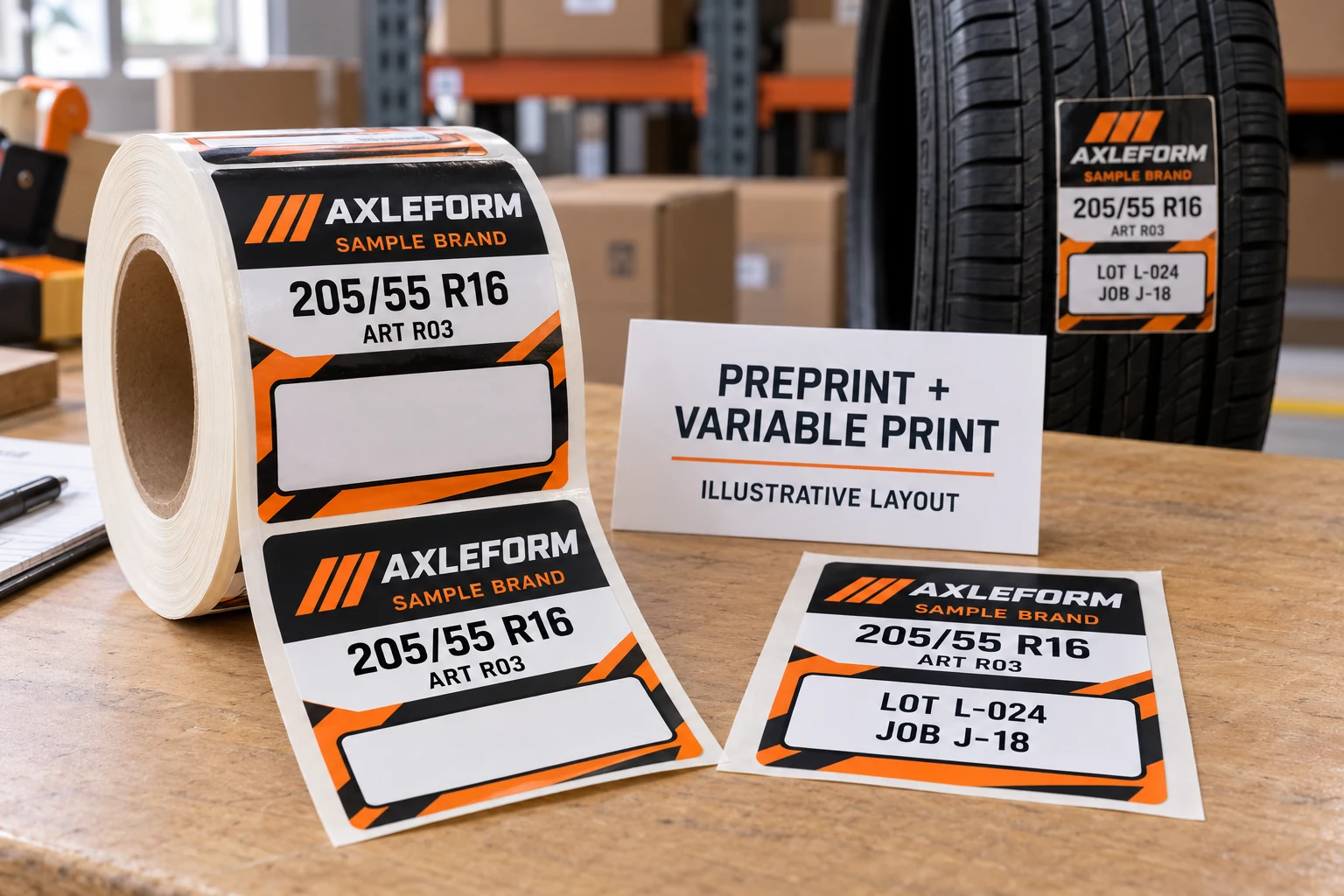
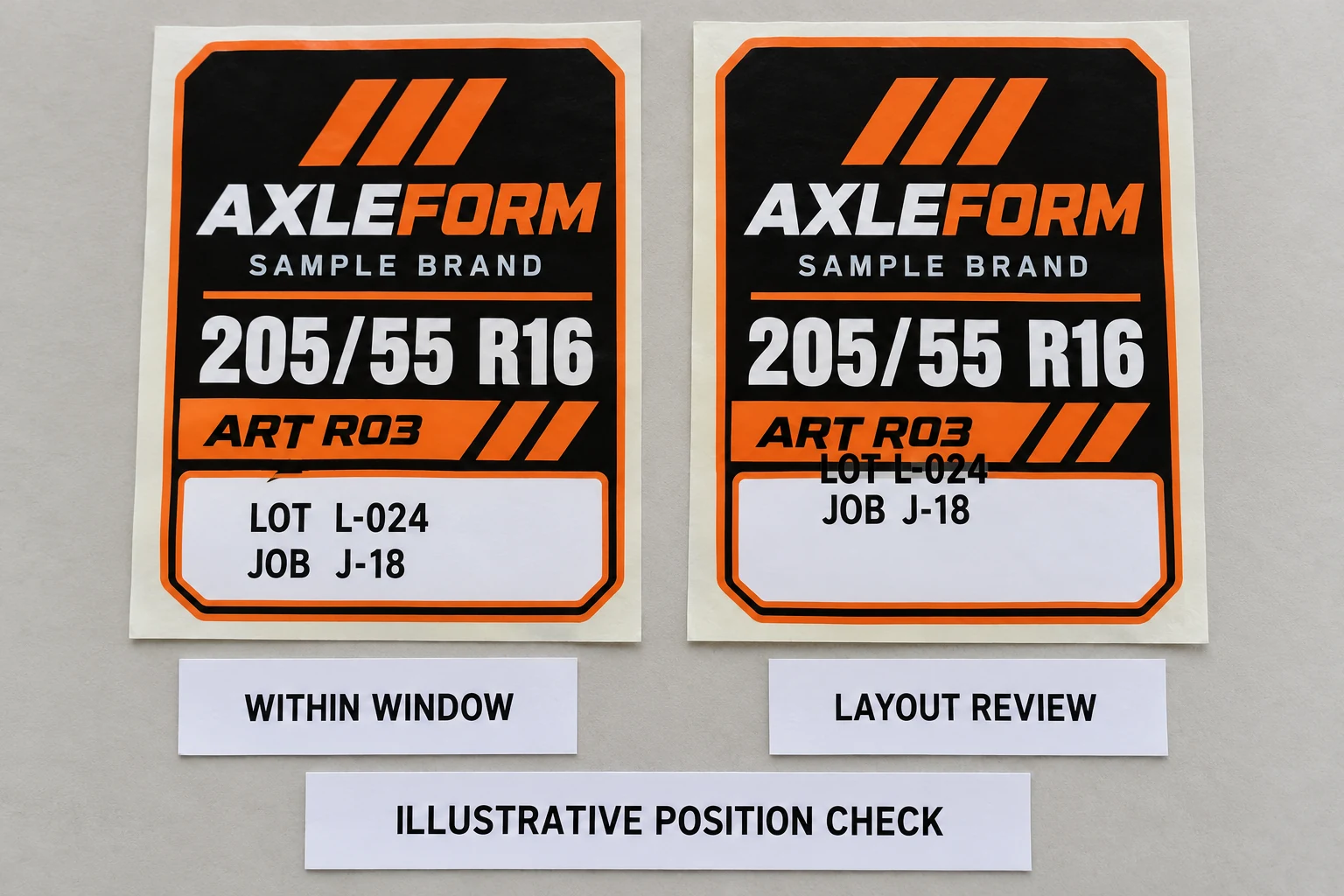
The color artwork has been approved. The tire size is prominent, the brand panel is finished, and a white box has been left for the buyer to print changing information later. Then the first variable job puts the lot field across the printed border.
This is an illustrative approval problem, not a reported production failure. The graphic designer approved one layer. The print-station owner is producing another. Procurement needs an approval that shows how the two layers work together before committing to a large preprinted roll run.
Treat the variable-print window as a defined output requirement. Agree where the changing content belongs, test representative content on the proposed construction and record the combined result. A white area in a PDF is useful space; it is not proof of print compatibility or position.
Give the two printing stages one shared reference
First decide which information is already printed and which information the buyer will add. For a fictional project, the brand and tire size might be fixed while lot and job references change. Another project may divide the fields differently. The actual product and data owners must approve that division.
The tire-label data handoff guide covers who supplies and approves those values. This review answers the next question: where does the approved variable content land relative to the fixed graphic on the physical label?
Use a controlled artwork reference and a controlled variable-template reference together. Mark the intended feed orientation on the review copy. Both parties should be able to identify the same top edge and the same finished label boundary without rotating separate attachments and guessing which way the roll enters the buyer's device.
Define the window from the finished label
Show the reserved area's width, height and position relative to an agreed physical reference, such as the finished die-cut edges. Identify any border or fixed text that the variable output must avoid. A designer's artboard and a device's usable print area should not silently be treated as the same object.
Ask the print-station owner to confirm the relevant printable area and media requirements from the actual device documentation. Do not invent a universal clearance or acceptable offset from a sample photograph. Agree the project's usable space and acceptance basis with the supplier and equipment owner.
The window must accommodate the intended output, including any functional clear areas required by the approved code design if codes will be added. The examples here show plain text only. They do not establish that a barcode of any particular size or payload will fit.
Try the content that challenges the layout
A short sample value can make an inadequate window look comfortable. Review the longest expected approved strings, the required line count and the actual text hierarchy. If the job can contain longer values later, record that possibility before freezing the graphic.
For the fictional AXLEFORM label, LOT L-024 and JOB J-18 are merely teaching strings. They do not define a production format. The buyer's data owner should supply representative content and any length limits. Avoid changing an identifier or silently shrinking essential text just to make an attractive proof.
Compare the actual output with the fixed artwork at finished size. If the template places changing text across a border, separate the possible remedies: revise the template position, simplify approved content presentation, enlarge the reserved area or reconsider the fixed layout. Changing the purchased label is not automatically the first answer.
Qualify the construction as well as the coordinates
Getting the text into the box does not establish that the proposed surface supports the chosen print process. Describe the actual label construction and any coating or finish in the variable area. Ask for the candidate supplied sample, rather than qualifying an unrelated white material that happens to fit the printer.
Zebra's thermal-transfer ribbon guidance describes ribbon formulations in relation to matched media. That supports treating print materials as a combination. It does not mean that any white window accepts any ribbon, or that this article has qualified a CYJ stock for the reader's device.
Use the actual equipment instructions and responsible operator for setup and evaluation. This guide does not prescribe calibration commands, sensor changes, speed or darkness. For material and ribbon discussion, the existing ribbon-selection guide provides the separate questions to settle.
Keep the combined approval with the purchasing record
Retain a physical output or another agreed reproducible record showing both layers together. A screenshot of the variable template alone omits the preprinted graphic it must avoid.
| Approval field | What the record should identify |
|---|---|
| Fixed layer | Artwork revision, finished dimensions and reserved-area position |
| Variable layer | Controlled job template, approved field examples and orientation |
| Proposed construction | Supplied sample reference and relevant finish in the print window |
| Output conditions | Device and agreed setup references used for the reviewed sample |
| Combined decision | What was checked, any limitations, responsible approver and changes requiring review |
These are suggested project fields, not an industry acceptance standard. State what the sample actually supports. A reviewed layout does not prove unlimited production consistency, correct underlying business data or adhesion to every tire surface.
Decide whether two stages are worth keeping
Hybrid printing can be worth discussing when changing fields cannot be fixed at the supplier's print stage. It also leaves the buyer with a template, consumables and an approval responsibility. Confirm which party supplies each part before comparing quotations.
If all required content is stable, ask whether a fully printed label would remove the second-stage task. If the variable template is simply too crowded, simplifying its approved presentation may solve the problem without purchasing a new graphic. Neither route has a universal cost advantage; compare the same finished requirement and actual work involved.
For custom tire labels, I would attach the combined-output reference to the purchase brief. It is the clearest way to show what the buyer expects to see after its own printing step, while leaving the supplier room to confirm what it can provide.
Planning to overprint tire labels? Prepare a combined-print brief with the fixed artwork, marked variable window, representative data, job-template reference, device details, proposed dimensions, tire-surface photo, quantity and roll requirements. Use the contact page to organize the requirements, then send the supporting artwork and output photos through the existing email or WhatsApp path for a project-specific review.